Manage project metadata, membership, publishing, and GitHub integration.
Project settings centralize metadata, access control, and integrations. Open it from the gear icon on a project row on the org Projects tab. Visible tabs depend on role and plan.
Org owners and org admins have owner access to every project — settings, content, and membership — without a separate project grant. Everyone else needs project role admin or higher to open settings.
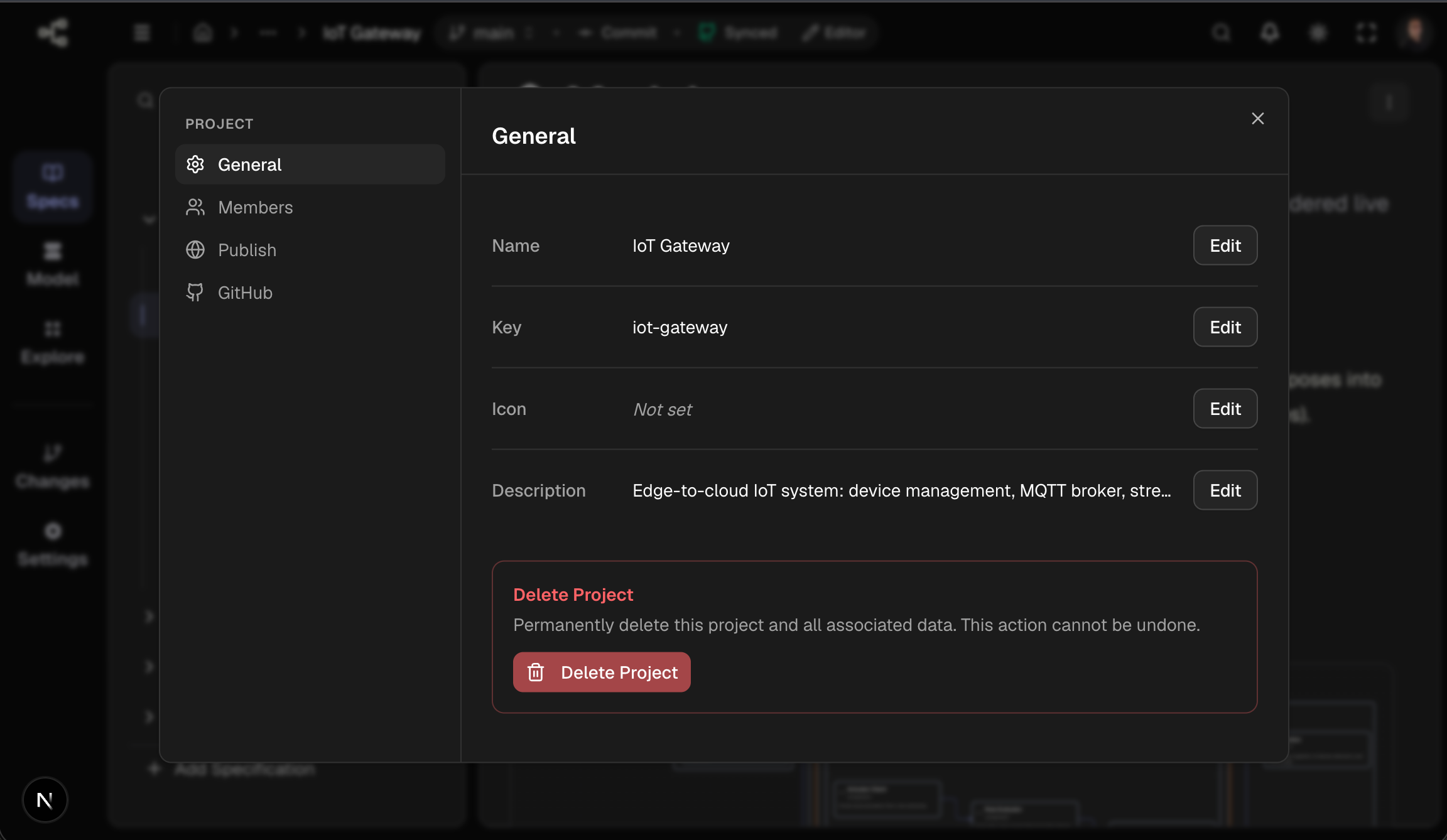
1. General
Role required: project owner, or org owner / org admin
| Field | Notes |
|---|---|
| Name | Display title (1–30 characters) |
| Key | URL slug (1–20 characters); change propagates to all project URLs |
| Icon, Description | Optional identification |
| Delete project | Irreversible — all branches, content, members, integrations removed; confirm by typing project name |
Fields on General save inline on confirm.
After a key change, update bookmarks, publish URLs, and CI variables.
2. Members
Role required: project admin or owner, or org owner / org admin
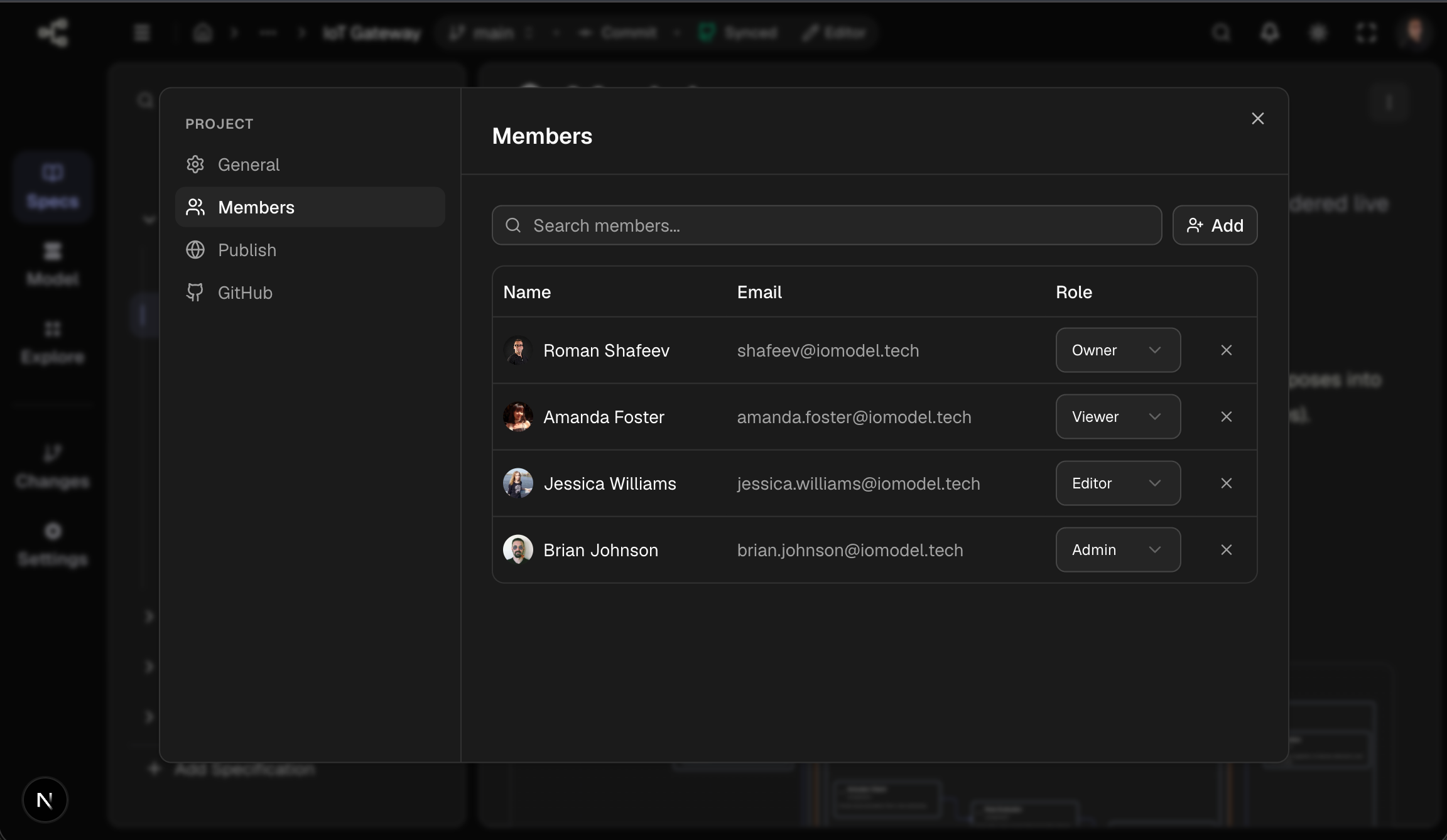
- Add — search org users or groups; assign
owner,admin,editor, orviewer - Inherited folder members appear with source annotation
- Role definitions: Teams and Access
Use when access applies to one project only, or when role differs from folder inheritance.
3. Publish
Role required: project admin or owner, or org owner / org admin
Not available for local projects. Domains are managed at the organization level — add and verify them under Organization settings → Domains before configuring a project here.
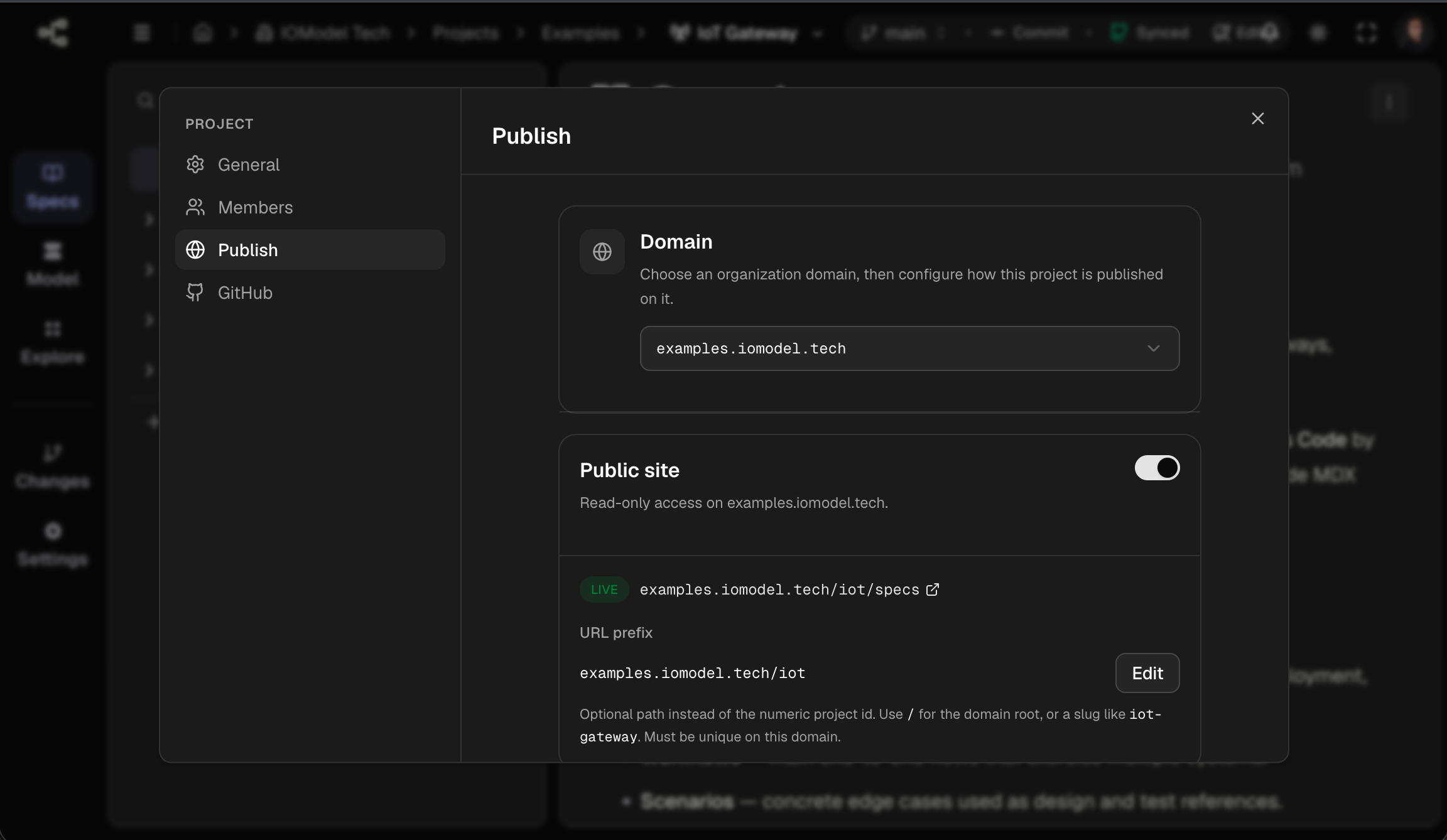
Publishing exposes a read-only copy of the project on an organization hostname (for example a verified custom domain or a shared *.iomodel.net host configured for the org). Visitors cannot edit content; Studio remains the authoring environment.
Domain
| Control | Behavior |
|---|---|
| Domain (select) | Lists every domain in the organization. Unlinked domains show · not added. Hostnames awaiting DNS show (DNS pending). |
| Add publication | Appears when the project is not yet on the selected domain. Creates a publication with Specs enabled, the project default branch selected, and publishing on. |
If no domains exist yet, the tab shows a short message directing you to Organization settings → Domains.
Public site
Settings apply per domain after the project is added.
| Control | Behavior |
|---|---|
| Publish (switch) | Turns public access on or off for this project on the selected domain. Requires at least one team-visible branch (not a members-only Collab room). When turned on with no branches selected, the default branch is applied automatically. |
| Status | Offline — switch off. Awaiting DNS — on, but the domain is not verified yet (complete CNAME/TXT in org Domains). Live — on and verified; opens the public URL in a new tab. |
| URL prefix | Optional path segment instead of the numeric project id in URLs. Edit → save with ✓ or cancel with ✕. Empty uses {projectId}. / mounts the project at the domain root (only one project per domain can use /). Custom slugs: lowercase letters, numbers, hyphens, max 63 characters; must be unique on the domain and cannot match reserved section names or another project id. |
Example paths on docs.example.com:
- Default:
docs.example.com/42/specs/…(project id42) - Custom slug:
docs.example.com/iot-gateway/specs/… - Domain root:
docs.example.com/specs/…(prefix/)
Content and prefix can be edited while publishing is off; Sections and Branches are locked until the switch is on.
Content
| Control | Behavior |
|---|---|
| Sections | Toggle which app areas are public. At least one must stay selected while publishing is on. Specs — documentation. Model — architecture model. Explore — exploration views. Changes — change history (when available for the project). |
| Branches | Toggle which team-visible, non-archived branches visitors can open. At least one branch is required. The default branch is labeled default. Members-only Collab rooms never appear in this list. |
Changes save immediately when toggles change (no separate Save button).
Remove publication
Remove from (bottom of the tab, admins only) deletes this project’s publication on that domain. It does not delete the domain itself or other projects on the same host.
Canonical subdomain
Each cloud project also has a canonical URL
https://{projectId}.iomodel.net when published on the platform root
domain. Custom domains and URL prefixes are configured per domain in this tab.
4. GitHub
Role required: project admin or owner, or org owner / org admin
Visible only when the organization plan includes Git sync. Not available for local projects. GitHub and GitLab (including self-hosted) use the same tab. For the two integration modes (Git-project vs cloud sync), see GitHub Connection, GitLab Connection, and GitHub Sync.
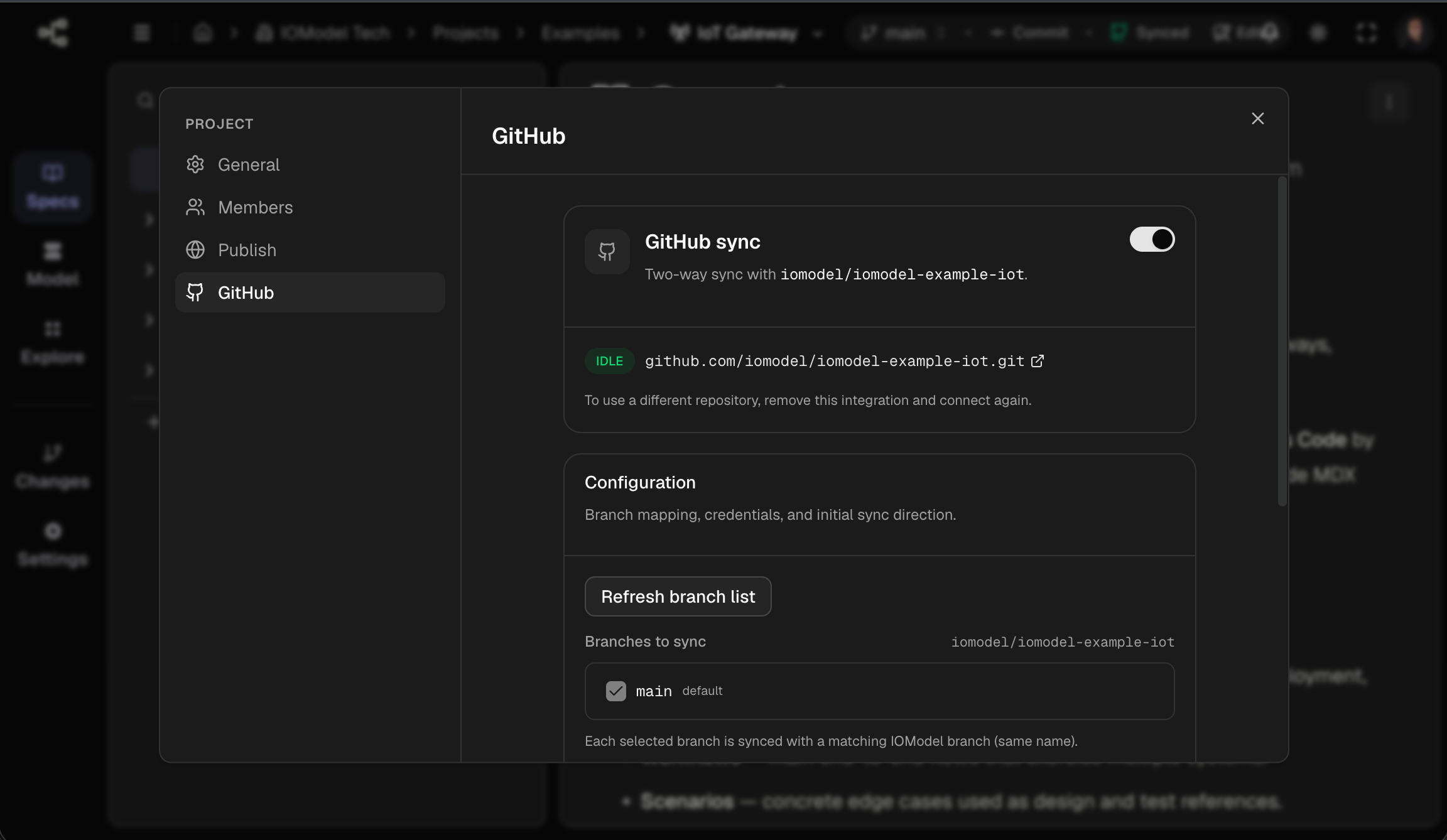
Links a cloud project to a GitHub repository for automatic two-way sync: IOModel commits are pushed to Git; new Git commits are imported as IOModel commits (polling).
Connect a repository (first-time setup)
| Field / action | Notes |
|---|---|
| Repository URL | HTTPS URL, e.g. https://github.com/acme/specs. Changing URL or token clears verification. |
| Access token (PAT) | Personal Access Token with read/write access to the repo. Fine-grained: Contents — Read and write on the target repo. Classic: repo scope. Stored encrypted; never shown again after save. |
| Verify access | Checks URL and token against GitHub and loads the branch list. Shows Connected when successful. |
| Branches to sync | Checkboxes for Git branches to link (at least one). Each selected branch syncs with an IOModel branch of the same name (created if missing). The repo default branch is pre-selected when possible. |
| Source of truth | IOModel — push the current Studio state to GitHub on first sync. GitHub — import the repository into IOModel on first sync. Cannot be changed after connecting. |
| Connect repository | Saves URL, token, branches, source of truth, and enables sync. |
GitHub sync (connected)
| Control | Behavior |
|---|---|
| Sync (switch) | Enables or pauses synchronization. When off, status shows Paused and pushes/pulls stop. |
| Status badge | Idle, Syncing, Conflict, or Error (from the first branch link when sync is on). Conflict blocks sync until resolved in Studio — see Conflict Resolution. |
| Repository link | Opens the connected repo on GitHub. To use a different repository, remove the integration and connect again. |
Configuration
| Control | Behavior |
|---|---|
| Branches to sync | Refresh branch list reloads branches from GitHub using the stored token. Change checkboxes, then Save branch selection (appears when the list is dirty). At least one branch must remain selected. |
| Current sync status | Per linked Git branch: idle, syncing, conflict, or error. |
| Access token (PAT) | Masked after connect. Edit to rotate — enter a new token and confirm. Required if the token expires or is revoked on GitHub. |
| Source of truth | Read-only reminder of the choice made at connect time. |
Remove integration
Remove integration (admins only) disconnects the repository, deletes branch links, and clears the stored token. The project and its IOModel branches remain; only Git sync stops.
Scope the PAT to a single repository and rotate it from this tab whenever GitHub revokes or expires it — sync resumes after a successful save.
Role summary
| Role | Scope |
|---|---|
owner | Full control including delete |
admin | Members, settings, publish, GitHub |
editor | Content, branches, commits |
viewer | Read-only — no branch or commit controls |
Least privilege
Default contributors to editor, stakeholders to viewer. Reserve admin and owner for lifecycle and access management.
Last updated on