Connect IOModel to GitHub — file-based Git-projects, or cloud project GitHub Sync.
There are two ways to work with IOModel content in GitHub. Pick based on where your content lives.
| Mode | Source of truth | Edited in | Best for |
|---|---|---|---|
| Git-project | Files in the repo | IDE extension | Teams that keep architecture in the same repo as code |
| Cloud Git sync | IOModel or the git host | Studio | Teams editing in Studio that also want files in Git |
Git-project (files in GitHub)
A Git-project stores project.yaml, models/, and specs/ directly in the repository. GitHub is the system of record — versioning, branches, and review are standard Git.
Lay out the repo
Arrange files per the Git Project layout.
Commit and push
Use normal Git for history and branches.
Review in pull requests
Reviewers read the model and spec diff. See Pull Request Review Flow.
Validate in CI
Add the IOModel validation workflow so PRs are checked automatically — see CI Validation.
Cloud Git sync
For cloud projects, Git sync links Studio’s versioned branches to GitHub or GitLab branches and keeps them in step automatically. Available when the organization plan includes Git sync. Organisation Settings → Git Integration lists which hosts are allowed (GitHub Cloud and GitLab Cloud by default; admins can add GitLab Self-Hosted).
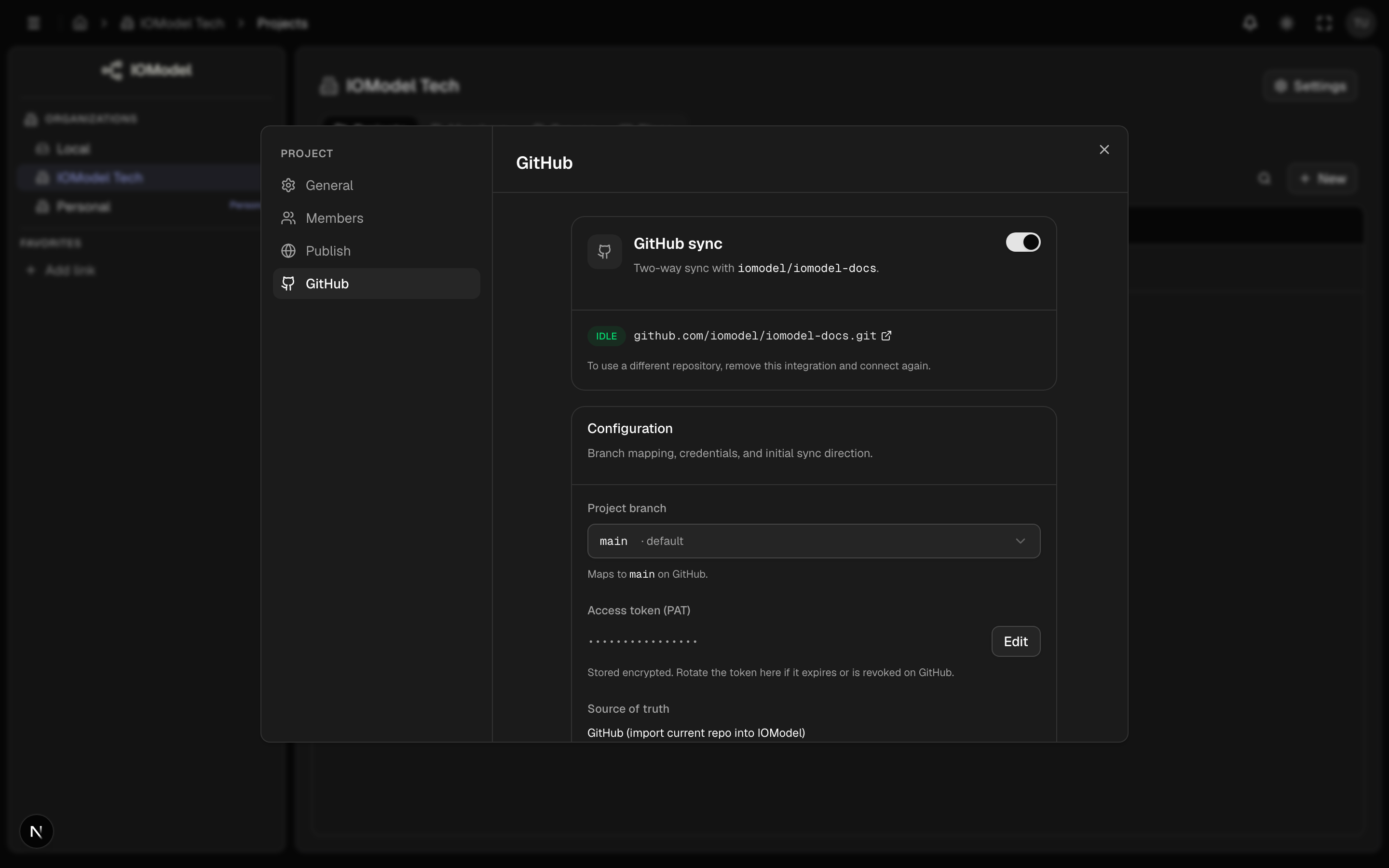
Connect a repository
Open the Git tab
Project settings → Git (visible only with the Git sync plan feature). Requires admin or owner.
Add repository and token
Enter the repository URL and a Personal Access Token (GitHub) or project token (GitLab) with read/write scope. The token is stored encrypted and shown masked; rotate it here if it expires.
Choose the source of truth
- IOModel — push the current project state to git.
- Git host — import the repository contents into IOModel.
Link branches
Map each IOModel Standard or Protected branch to a Git branch. Collab rooms and temporary working copies are never linked — Git branch patterns (*, features/*) only attach to a team-visible merge-only branch of the same name. Each link reports status: idle, syncing, conflict, or error.
How sync runs
| Direction | Trigger | Result |
|---|---|---|
| IOModel → git | New IOModel commit (polling) | Commit materialized (text and binary attachments) and pushed to the linked Git branch |
| git → IOModel | New Git commit (polling) | Repo tree imported as a new IOModel commit |
Git LFS is not supported
If .gitattributes or a pointer file says the repo uses Git LFS, sync
stops. IOModel will not store the pointer as if it were the file. Host
binaries in the repo itself (Studio offloads large blobs to object storage
on the cloud side).
Branch link status
Each link reports idle, syncing, conflict, or error. A conflict
pauses sync for that branch until the divergence is resolved in Studio — see
Conflict Resolution.
Import a project from git
To create a new cloud project from an existing repo: Projects → New → Import Project. The wizard collects project metadata, the repository and token, and the source branch, then imports the tree. Continuous sync starts automatically with the git host as the source of truth.
The repository must use the IOModel layout (models.yaml, specs/**, meta.yaml); otherwise the import stops and reports which files were found versus expected. Binary files (images, fonts, PDFs) import as attachments; Git LFS repositories are rejected.
Use a token scoped to just the target repository, and rotate it from the Git tab whenever it changes — sync resumes with the new token.
Last updated on