Find objects and focus the diagram with search and filters.
Explore always holds the full model, but the work you do rarely needs all of it at once. Search and filters let you reshape visibility for the task and context — onboarding, a design review, debugging one flow — without leaving the unified canvas.
Search jumps you to a specific object; filters hide everything that is not relevant to the question at hand.
Search
Diagram search lives in the top-left toolbar on the Explore canvas. It matches objects by title or path and edges between them. Selecting a result centers the canvas on the match and opens its object panel — useful when you know the name but not where it sits in the tree.
Use the keyboard shortcut (same as global search elsewhere in Studio) to open search without leaving the diagram.
Filter controls
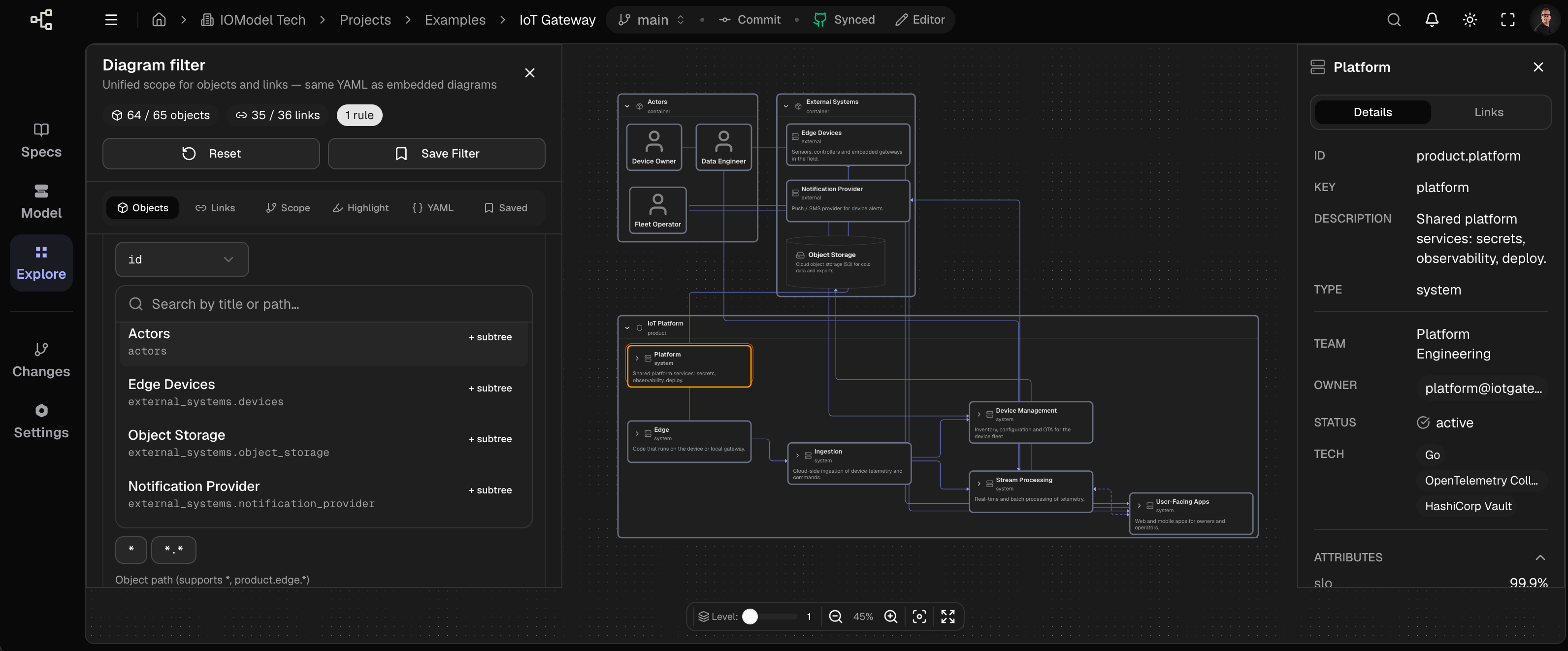
Filtering is split between a compact toolbar menu and a full filter panel. Both work on the same rule set and produce the same YAML as embedded diagrams in specs.
| Control | Location | Purpose |
|---|---|---|
| Filters menu | Top-left toolbar, next to search | Quickly switch saved filters, reset, save, or open the editor |
| Diagram filter panel | Left side of the canvas (resizable) | Build object, link, scope, and highlight rules; preview YAML; manage saved filters |
Open the panel from the Filters menu (Edit filter rules) or from Save Filter in the panel header. The panel shows live counts — visible objects and links vs the full model, plus the number of active rules.
Filters menu (quick access)
The Filters dropdown in the top toolbar is the fast path for day-to-day work:
- Current* — the live, unsaved filter (shown when any rules are active). An asterisk on a saved name means you changed rules after loading it.
- Saved filters — your private filters and filters shared with the project, searchable and grouped by All / Mine / Shared.
- Save — opens the panel on the Saved tab to name and store the current rules.
- Edit — opens the full filter panel.
- Reset — clears all rules and returns to the default view.
Private filters are stored in the browser for this project and model. Shared filters are published to the project so teammates can load the same view; shared entries show the author name.
Diagram filter panel
The panel has six tabs. Rules from every tab are combined into one scope — the same pipeline used when a spec embeds a filtered <Objects> diagram.
Objects
Two sections define which objects appear on the canvas:
| Section | Effect |
|---|---|
Show only (include) | Keep objects that match every field group you add. Within one field, any listed value can match (OR). |
Hide (exclude) | Remove objects that match any rule, applied after include and scope expansion. |
Filterable fields come from three sources:
- Built-in —
id,type,subtype,title - Schema — custom properties from the model’s object schema (e.g.
team,status) - Link attributes (on the Links tab) — keys discovered on links in the current model
For the id field, pick objects from a searchable list or type patterns directly. Use + subtree next to an object to add a wildcard such as product.edge.* (matches that object and all descendants).
When no Show only rules exist, every object is eligible; Hide rules then subtract specific nodes or patterns.
Links
The same Show only / Hide pattern applies to links (edges), using link fields:
| Field | Matches |
|---|---|
source | Link origin object id (supports * and prefix.* wildcards) |
dest | Link destination object id |
tags | Link tags (supports group wildcards like flow:*) |
type | Link type |
| attribute keys | Values on link attributes discovered in the model |
Link filters trim edges on the diagram; they do not by themselves add new objects outside the object scope. Cross-boundary links disappear when their endpoint is not in the visible object set.
Scope
Scope toggles control how the object set expands around matches. They apply only when at least one object, link, or highlight rule is active.
| Toggle | YAML key | Effect |
|---|---|---|
| Show parents | show_parents: true | Keep direct ancestors of matched objects (containers stay visible instead of re-rooting the subtree) |
| Linked neighbors | include_objects_by_links: true | Include objects one hop away via any in/out link |
| Show children | show_childs: true | Include direct children of matched objects |
| All descendants | show_childs.recursive: true | Expand to the full subtree under matches |
Turn Show parents off to re-root focused subtrees — e.g. product.edge becomes a top-level node without product above it. Scope expansion never brings back objects explicitly listed under Hide.
Highlight
The Highlight tab marks objects with an amber selection ring on the diagram. Highlighting is visual only — it does not change which objects or links are rendered. In YAML this maps to the selected.objects.include block.
YAML
A read-only preview of the current filter, using the same syntax as embedded diagram filters in specs. Use it to copy rules into documentation or to verify what Explore will apply.
Saved
Save the current rule set with a name, optional description, and visibility:
- Private — only you see and manage it (browser storage per project/model).
- Shared — published to the project; anyone on the project can load it.
Load a saved filter by clicking its card. Delete your own filters from the card menu. Refresh loads the latest shared filters from the project.
Hide from the canvas (context menu)
You can hide objects and links directly on the diagram without opening the panel. Right-click a node:
| Action | Filter effect |
|---|---|
| Hide object | Adds exclude.objects.id: <node id> |
| Hide inbound links | Adds exclude.links.dest: <node id> — hides edges pointing into this object |
| Hide outbound links | Adds exclude.links.source: <node id> — hides edges leaving this object |
Each action adds one rule to the current filter. Use Show inbound/outbound links in the same menu to remove the corresponding exclude rule. Reset in the toolbar or panel clears these along with all other rules.
Context-menu hiding is ideal for quick, point edits during a review. When the combination is worth reusing, save it from the Saved tab or the Filters menu.
How rules combine
Understanding include, exclude, and scope together:
- Base set — objects matching Show only object rules (or all objects if none).
- Expansion — scope toggles add parents, children, descendants, and link neighbors.
- Exclude objects — anything matching Hide object rules is removed (including items added by expansion).
- Links — each remaining link is checked against link include/exclude rules.
- Highlight — matching visible objects get a selection ring.
Include logic: every field under include must match (AND across fields). Multiple values under one field are OR’d — the object needs to match at least one pattern for that field.
Exclude logic: if any exclude field matches, the object or link is dropped.
Wildcards:
| Pattern | Applies to | Meaning |
|---|---|---|
* | ids, attributes | Match any value |
product.* | object id, source, dest | Match product and any id starting with product. |
flow:* | link tags | Match tag flow or any tag starting with flow: |
Comma-separated patterns in the UI are stored as separate YAML list entries.
Filter YAML reference
Explore, the filter panel YAML tab, and embedded <Objects> diagrams share one format. Top-level keys:
filters:
  objects:
    include: { … }   # field → list of patterns
    exclude: { … }
  links:
    include: { … }
    exclude: { … }
selected:
  objects:
    include: { … }   # highlight only
include_objects_by_links: true
show_parents: true
show_childs: true          # or nested form with recursive: true
Object filters
filters:
  objects:
    include:
      id:
        - product.edge
        - product.edge.*
      type:
        - service
      team:
        - Edge Platform
    exclude:
      id:
        - product.legacy
      status:
- deprecatedid— object path in the model tree.product.edge.*includes that node and all descendants.type,subtype,title— built-in fields.- Schema fields — any property from the object schema (
team,status, …).
Without an include block, all objects start in scope; exclude subtracts matches.
Link filters
filters:
  links:
    include:
      tags:
        - internal:api
        - flow:*
      source:
        - product.edge
    exclude:
      dest:
        - product.ingestion
      attr1:
- '*'source/dest— endpoint object ids (same wildcard rules as objectid).tags— link tags;flow:*matches the group prefix.- Attribute keys — flat keys under
exclude(legacyexclude.attributeslists are normalized to this shape on load).
Scope and highlight
filters:
  objects:
    include:
      id:
        - product.edge
        - product.edge.*

include_objects_by_links: true
show_parents: true
show_childs:
  enabled: true
  recursive: true

selected:
  objects:
    include:
      id:
        - product.edge.rule_runtime
Default embedded diagram
When a spec omits filters, embedded diagrams default to showing everything:
filters:
  objects:
    include:
      id:
        - '*'
Full example
A focused edge-platform view with internal flows, one highlighted service, and legacy nodes hidden:
filters:
  objects:
    include:
      id:
        - product.edge
        - product.edge.*
    exclude:
      id:
        - product.edge.legacy.*
  links:
    include:
      tags:
        - flow:*
    exclude:
      source:
        - product.edge.rule_runtime

include_objects_by_links: true
show_parents: true
show_childs:
  enabled: true
  recursive: true

selected:
  objects:
    include:
      id:
        - product.edge.rule_runtime
Embedded diagram filters
When embedding a model diagram in a spec with the <Objects> component, put the same YAML in a fenced yaml code block as the component’s child. Explore’s filter panel is a visual editor for that format — rules you build in Explore can be copied from the YAML tab into specs, and vice versa.
Filters do not change the model
Filtering affects only what is rendered. The underlying model is unchanged; you are choosing a focused view.
Save a shared filter when a view fits a recurring context (team, feature area, review type). Teammates load it from Filters → Shared instead of rebuilding the same rules each time.
Last updated on