Explore as a unified canvas for structure, behavior, and task-focused views.
Explore is a single unified interface for understanding a project’s architecture. Every object, link, and nested subtree from all models renders on one interactive diagram — automatically laid out so you read relationships instead of arranging boxes.
Open it from a project’s left navigation (Explore).
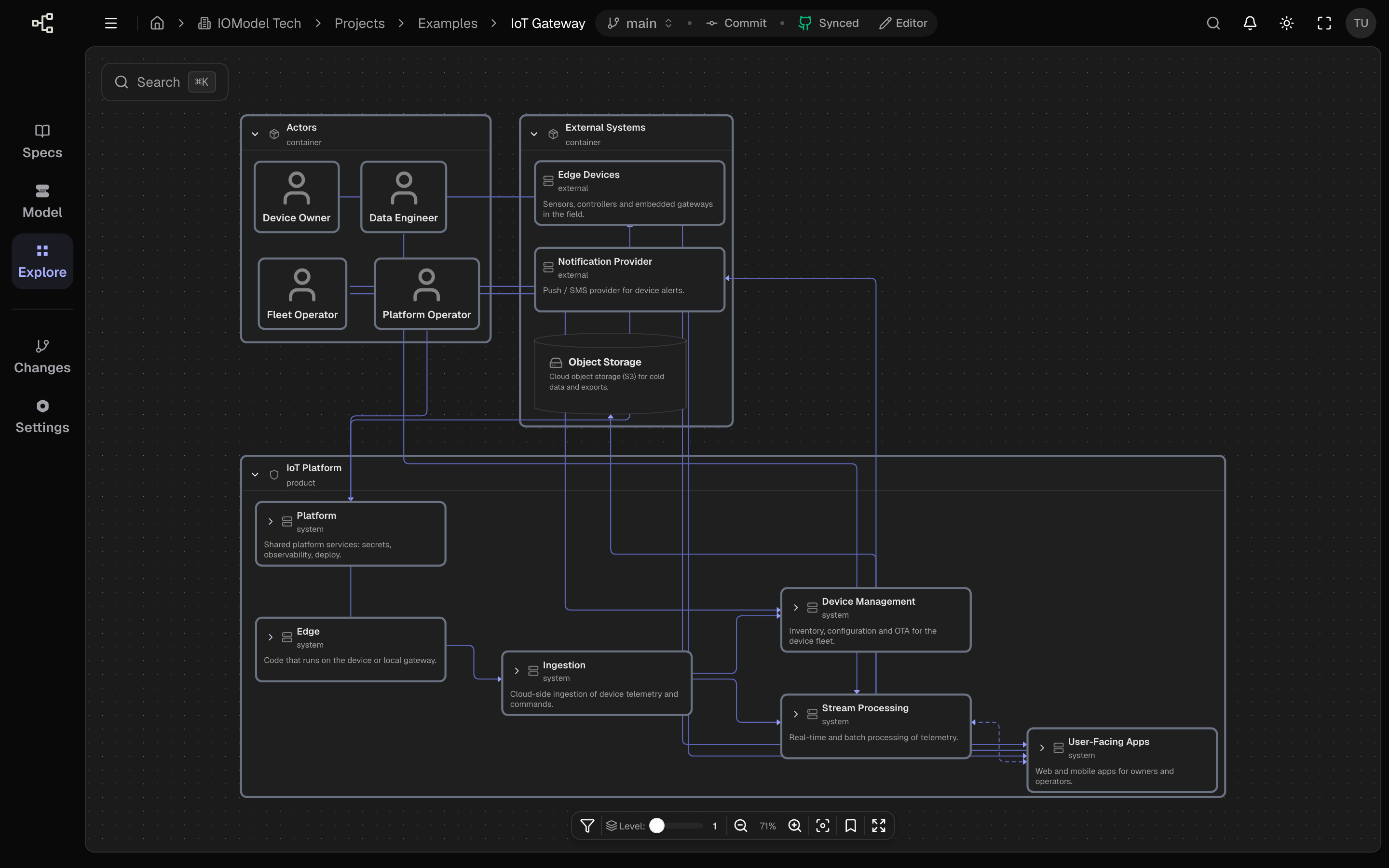
One canvas for the whole model
| What you see | Why it matters |
|---|---|
| All model files in the project | No switching between disconnected diagrams — one surface for the full picture |
| Objects as nodes, links as edges | Structure and behavior share the same coordinate space |
| Nested children inside parents | Landscape, container, and component depth on the same canvas |
| Attached artifacts in the object panel | Specs, contracts, and workflows stay linked to the nodes they describe |
Projects with multiple model files use the model picker in the bottom toolbar to scope or combine models on the same canvas. With a single model file the picker is hidden.
Play workflows on the diagram
Workflows defined in the model (.wf artifacts) are not separate from structure — you play them directly in Explore.
Select a workflow from an object’s artifacts or from the workflow controls on the canvas, then use Play, Pause, and step forward/back to walk through each message. As playback runs, the relevant participants and links highlight on the same objects diagram, so you see who talks to whom in the context of how things are wired.
Structure and behavior together
Playback does not open a detached sequence view. Messages animate over the unified model diagram, making it easier to connect runtime behavior with architectural boundaries.
Shape the view to your task
The full model is always there, but not every task needs every node. Explore lets you reduce visibility so the canvas reflects the work at hand:
| Need | Control |
|---|---|
| Hide unrelated systems | Object and type filters in the bottom toolbar |
| Focus on one flow or domain | Tag-based filters and diagram presets |
| Match depth to your audience | Level slider and per-node expand/collapse |
| Jump to a known piece | Diagram search by title or path |
Filters affect rendering only — the underlying model is unchanged. Switch filters or presets when the context changes (design review, incident triage, onboarding) without rebuilding the diagram.
Canvas anatomy
| Area | Purpose |
|---|---|
| Canvas | The unified diagram: all objects, edges, workflow playback highlights, and nested structure |
| Bottom toolbar | Model picker, filters, Level slider, zoom and fit, presets, workflow playback controls |
| Object panel | Details, attributes, links, and artifacts (including workflows) for the selected object |
The toolbar sits at the bottom-center of the canvas.
Core interactions
| Interaction | How |
|---|---|
| Pan / zoom | Drag the canvas; zoom buttons or Fit view in the toolbar |
| Inspect | Click a node to open its object panel (attributes, links, artifacts) |
| Play a workflow | Open a workflow artifact and use Play / step controls to animate messages on the diagram |
| Change detail | Drag the Level slider to expand or collapse nesting depth |
| Focus for a task | Apply filters, presets, or search to trim the canvas to what matters now |
| Follow a link | Select an edge to trace a relationship between objects |
Read vs edit
The full Explore page follows the title-bar Editor / View toggle. In View the canvas is read-only navigation; in Editor, with editor role or higher, structural changes write back to the model YAML.
Start zoomed out at a low Level with broad filters to read the overall shape, then play a workflow or drill into one subtree. Showing everything at full depth at once hides the structure.
Last updated on